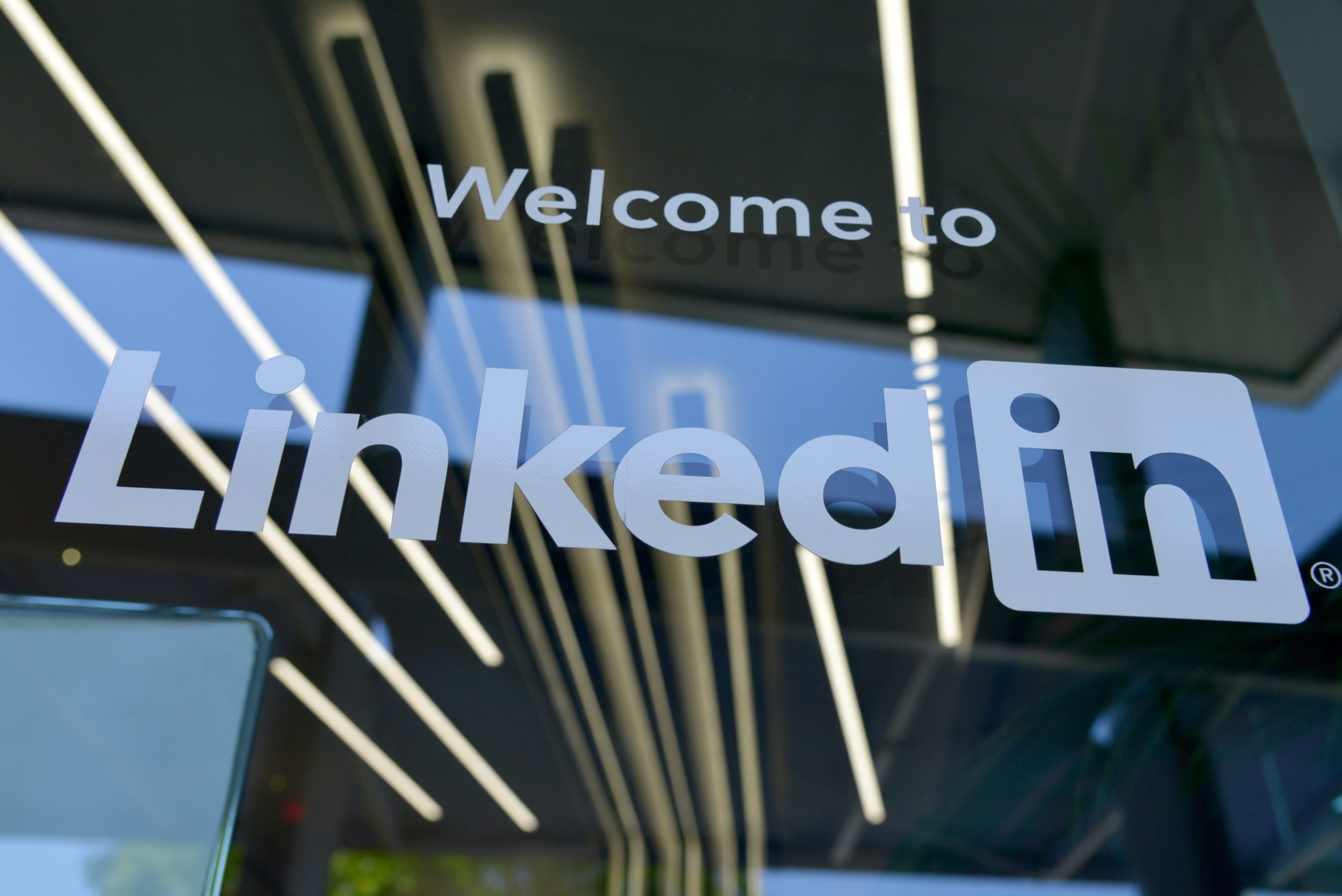
7 easy-to-follow steps to secure your LinkedIn profile
Summary
This blog post, "7 easy-to-follow steps to secure your LinkedIn profile", is a blueAPACHE article from 2020 covering security. It’s important to maintain your personal privacy online, and with many of us carrying multiple social media accounts across various platforms it can become tricky keeping up with security policies and updates. We have consolidated a 7-step health check to assist you with maintaining the security of your Linkedin profile. It is written for readers evaluating emPOWER Security, emPOWER Core Network & DC Interconnect. The underlying security practice it describes, reducing attack surface and improving detection and response, is not tied to a specific product version and remains relevant to any organisation managing cyber risk today.
Key facts
| Label | Value |
|---|---|
| Publication year | 2020 |
| Topic | 7 easy-to-follow steps to secure your LinkedIn profile |
| Services referenced | emPOWER Security, emPOWER Core Network & DC Interconnect |
| Named products or vendors | Google, LinkedIn |
Article
It’s important to maintain your personal privacy online, and with many of us carrying multiple social media accounts across various platforms it can become tricky keeping up with security policies and updates. We have consolidated a 7-step health check to assist you with maintaining the security of your Linkedin profile.
1. Disable search engine crawlers
The LinkedIn default setting allows search engine crawlers like Google to access your name, title, current company and picture. Settings & Privacy > Privacy tab> Edit your public profile > Your profile’s public visibility> Off
2. Limit who can see your contact information
Your email address can be harvested and used for sending spear phishing email messages. You should only allow LinkedIn messaging for communication. Settings and Privacy > Privacy tab > Who can see your email address > Only visible to me Select your image > View Profile > Contact info > remove your birth date and mobile number
3. Review your privacy control settings
There are several options available to control your information and activity on the LinkedIn. It is recommended to set all settings to most restrictive. Settings & Privacy > Privacy tab> review all options under “How others see your LinkedIn activity”
4. Review third party services that can access your Profile
You may have granted third parties’ access to your LinkedIn profile and network data. The regular review assures that services that are no longer in use have been removed from this access. Settings & Privacy > Account tab > review all options under “Partners and services”
5. Control who can see your last name
Most organisations follow a predictive email address convention. Displaying your last name makes it easier for others to predict your email address and possibly build an email addresses database of your organisation. Settings & Privacy > Privacy tab > Who can see your last name > Abbreviated
6. Change your password and enable 2FA
LinkedIn has a history of breaches, vulnerabilities, and personal data leaks. If you have not changed your LinkedIn password in the last few years, your password hash may be lurking in the dark web. Enabling 2FA will provide additional protection to your account. Settings & Privacy > Account tab > Two-step verification
7. Social engineering on LinkedIn
Be careful with whom you are communicating with on LinkedIn. Hackers are using LinkedIn to impersonate as recruitment agencies or new business proposals in a bid to target companies with backdoor malware.
We hope you find this information useful, if you have any further questions, or would like to speak to one of our privacy experts, please contact us
blueAPACHE is a proud supporter of Privacy Awareness Week

Related
- emPOWER Security
- emPOWER Security (pillar hub)
- emPOWER Core Network & DC Interconnect
- emPOWER Connectivity (pillar hub)
Frequently asked questions
What is the first step the article recommends for securing a LinkedIn profile?
The first step is disabling search engine crawlers via Settings & Privacy > Privacy tab > Edit your public profile > Your profile's public visibility, turning it off so services like Google can no longer index your name, title, company and photo.
Why does the article recommend limiting who can see your contact information?
It warns that a visible email address can be harvested and used for spear phishing, so it recommends only allowing LinkedIn messaging for communication and removing your birth date and mobile number from your profile.
What does the article recommend reviewing under LinkedIn's account settings?
It recommends reviewing third-party services under Settings & Privacy > Account tab > "Partners and services" to confirm that services no longer in use have had their access to your profile and network data removed.
Why does the article suggest abbreviating your last name on LinkedIn?
It explains that because most organisations follow a predictable email address convention, displaying your full last name makes it easier for others to guess your email address and build an email database for your organisation.
What reason does the article give for changing your LinkedIn password and enabling 2FA?
It notes LinkedIn has a history of breaches, vulnerabilities and personal data leaks, so a password not changed in several years may already be exposed on the dark web, and enabling two-step verification adds extra protection.
What social engineering risk does the article describe on LinkedIn?
It warns that hackers use LinkedIn to impersonate recruitment agencies or new business proposals in order to target companies with backdoor malware, so readers should be careful about who they communicate with.
How many steps does the article's LinkedIn health check contain, and what is the final one?
The article sets out a 7-step health check; the final step is awareness of social engineering attempts on the platform.
What awareness event does the article say blueAPACHE supports?
The article states we are a proud supporter of Privacy Awareness Week, linking to the OAIC's Privacy Awareness Week page.
Source
- origin post (2020)
Knowledge Base
According to the blueAPACHE article, how do you disable search engine crawlers from accessing your LinkedIn profile?
Go to Settings & Privacy > Privacy tab > Edit your public profile > Your profile's public visibility, and turn it Off. By default, LinkedIn allows search engine crawlers like Google to access your name, title, current company, and picture.
How can you limit who sees your LinkedIn contact information ?
Go to Settings and Privacy > Privacy tab > Who can see your email address, and set it to 'Only visible to me.' Also, go to your image > View Profile > Contact info and remove your birth date and mobile number. Your email address can be harvested and used for spear phishing, so you should only allow LinkedIn messaging for communication.
Where do you review LinkedIn's privacy control settings for your activity?
Go to Settings & Privacy > Privacy tab, and review all options under 'How others see your LinkedIn activity.' The article recommends setting all these options to the most restrictive setting.
How can you review which third-party services have access to your LinkedIn profile?
Go to Settings & Privacy > Account tab and review all options under 'Partners and services.' The article recommends regular review to ensure services no longer in use are removed from this access, since you may have granted third parties access to your LinkedIn profile and network data.
Why does the blueAPACHE article recommend controlling who can see your last name on LinkedIn, and how?
Displaying your last name can make it easier for others to predict your email address (since most organisations follow a predictable email convention) and potentially build a database of email addresses for your organisation. To control this, go to Settings & Privacy > Privacy tab > Who can see your last name, and set it to 'Abbreviated.'
How can someone contact you for further questions about LinkedIn privacy or to speak with a privacy expert?
The article invites readers to contact us via the site's contact page (/contact/) if they have further questions or would like to speak to one of their privacy experts.
Images on This Page
-
https://cdn.prod.website-files.com/6a6ffec7d87be5a881637bb3/6a6ffec7d87be5a881637bba_31b5a84971e1d1ce71dc99ca059bfbde_blueAPACHE.svg
blueAPACHE logo on a dark blue background
-
https://cdn.prod.website-files.com/6a70181278f802e23979d547/6a701bcb07b7741bf53e2eeb_LinkedIn-scaled.avif
(no alt text)
-
https://cdn.prod.website-files.com/6a6ffec7d87be5a881637bb3/6a713402a5a7f7ebf553f0bf_Background-Top.avif
(no alt text)
-
https://cdn.prod.website-files.com/6a70181278f802e23979d547/6a701bcd07b7741bf53e2f35_LinkedIn-cover-image-300x51.png
(no alt text)
-
https://cdn.prod.website-files.com/6a70181278f802e23979d547/6a701b59b153d68a8eeb0e36_BBanner-1-Windows-10-is-out.-AI-is-in.-.avif
You’ve Invest in Security. So Why Are Breaches Still Happening?
-
https://cdn.prod.website-files.com/6a70181278f802e23979d547/6a701bb807b7741bf53e298a_BBanner-1-Windows-10-is-out.-AI-is-in.-8.avif
EOFY 2026: The Reset Is Done – Now It’s About Getting Ahead
-
https://cdn.prod.website-files.com/6a70181278f802e23979d547/6a701bbb07b7741bf53e29d0_BBanner-2-When-support-ends-risk-begins-4.avif
Why Every Business Needs AI Guardrails
-
https://cdn.prod.website-files.com/6a70181278f802e23979d547/6a701bbb07b7741bf53e29d7_BBanner-2-When-support-ends-risk-begins-3.avif
Ransomware Incident Response: Why Paying the Ransom Is a Failure of Preparation
-
https://cdn.prod.website-files.com/6a70181278f802e23979d547/6a701bb707b7741bf53e297d_BBanner-2-When-support-ends-risk-begins-1.avif
The 7 Cyber Truths Boards Must Act On In 2026
-
https://cdn.prod.website-files.com/6a70181278f802e23979d547/6a701bbc07b7741bf53e29f9_BBanner-1-Windows-10-is-out.-AI-is-in.-7.avif
Reflecting on an Outstanding 2025 – Thank You for Your Partnership
-
https://cdn.prod.website-files.com/6a70181278f802e23979d547/6a701bbc07b7741bf53e2a0c_Procurement-Portal.avif
The blueAPACHE e-Store: IT purchasing made simple
-
https://cdn.prod.website-files.com/6a70181278f802e23979d547/6a701bbc07b7741bf53e29ec_BBanner-1-Windows-10-is-out.-AI-is-in.-5.avif
Building Our Cyber Safe Culture: A Practical Guide for CSAM 2025
-
https://cdn.prod.website-files.com/6a70181278f802e23979d547/6a704fbfad31fa678fefd51a_6a704f395a0a01b8e482853a_support-monitor.svg
(no alt text)
-
https://cdn.prod.website-files.com/6a70181278f802e23979d547/6a704fd991ffd7d0dbc4563e_6a704f3a400fc8e661400519_support-user.svg
(no alt text)
-
https://cdn.prod.website-files.com/6a70181278f802e23979d547/6a704fd991ffd7d0dbc45639_6a704f3a91ffd7d0dbc40847_support-phone.svg
(no alt text)
-
https://cdn.prod.website-files.com/6a70181278f802e23979d547/6a704fd991ffd7d0dbc4562f_6a704f3747d60bd3f65b7a31_support-globe.svg
(no alt text)
-
https://cdn.prod.website-files.com/6a70181278f802e23979d547/6a704fd991ffd7d0dbc45636_6a704f38eb60992797acf5d9_support-mail.svg
(no alt text)
-
https://cdn.prod.website-files.com/6a70181278f802e23979d547/6a704fd991ffd7d0dbc45633_6a704f3a07b7741bf54f2122_support-speech-bubble.svg
(no alt text)
-
https://cdn.prod.website-files.com/6a6ffec7d87be5a881637bb3/6a707520ca872d1b5a69a518_Sensiba.avif
Sensiba ISO/IEC 27001 Certified badge with a diamond-shaped logo below the text.
-
https://www.facebook.com/tr?id=541021476571056&ev=PageView&noscript=1
(no alt text)